Overview
🧭 Overview We’re making it easier for customers to find the right rental. Customers can now filter available listings on the Rentals Booking Page using a **Start Date **and End Date before browsing listings. The system automatically shows
Details
🧭 Overview We’re making it easier for customers to find the right rental. Customers can now filter available listings on the Rentals Booking Page using a **Start Date **and End Date before browsing listings. The system automatically shows listings that are available during the selected rental period and pre-fills booking details when a listing is opened. This helps customers discover relevant rentals faster without checking availability listing by listing. # 🚀 What’s New? 📅 Filter Listings by Date Range Customers can now filter based upon a Start Date and End Date directly from the booking page. Once both dates are selected: 1. Listings are filtered based on availability 2. Only relevant listings are shown 3. Booking details are automatically pre-filled when a listing is opened 🕒 Works Across All Booking Modes - The date filter automatically adapts to the booking mode configured for each listing. - All booking rules — including availability, inventory, lead time, buffers, duration requirements, and advance booking limits — are respected before a listing is shown. 📅 Date Selector Listings - Listings are shown only when they can be booked for the complete selected date range Note : Nightly rentals requiring at least one night will not appear when the same start and end date are selected 🕒 Date & Time Selector Listings - Listings are shown only when a continuous booking can be created for the selected date range - Example: If a customer searches July 10 – July 12, a listing can appear even if it’s available from 11:30 PM on July 10 to 12:30 AM on July 12. ⏱️ Fixed Duration Listings - Listings are shown if the rental can start within the selected date range - The rental may end after the selected end date depending on the configured duration # 🧩 How to Use - Open the Rentals Booking Page - Select a Start Date and End Date in the Availability filter and click Apply - Browse filtered listings - Open a listing to view pre-filled booking details - Complete the booking as usual # 🎯 Why This Matters - Helps customers find available rentals faster - Reduces time spent checking availability manually for each listing - Improves booking conversion with easier discoverability and smarter defaults 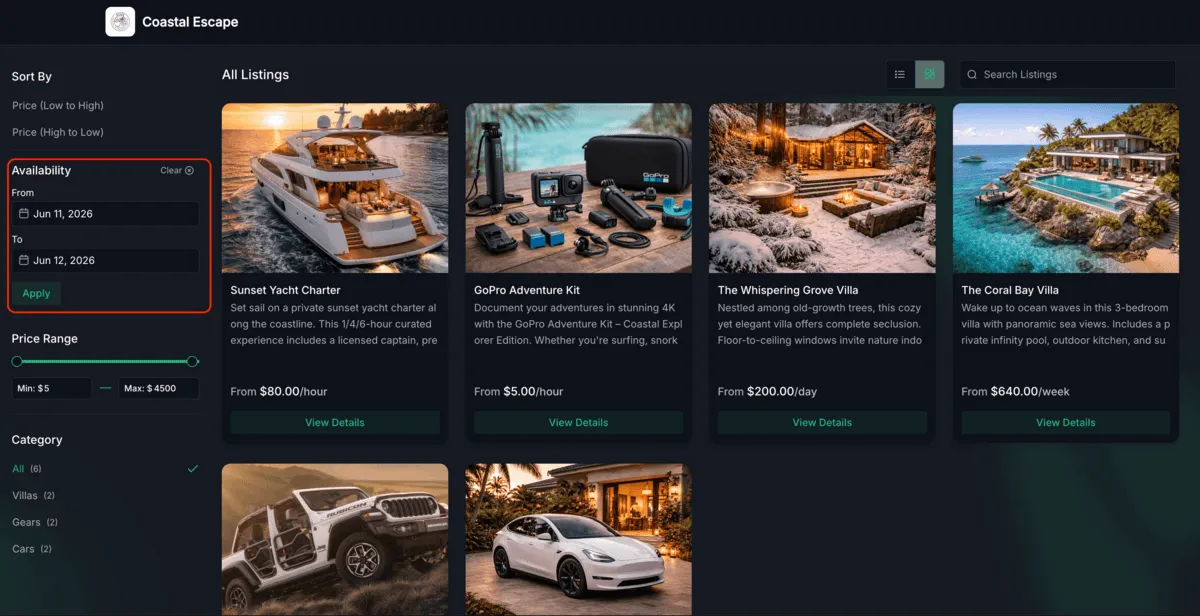
Need Help Applying This Update?
Want help turning this update into a working part of your CRM, marketing, or automation setup?
Get Started or schedule a demo and we’ll help you map the right next step.