Todoist Triggers and Actions for Workflows
SMBcrm workflows can connect with Todoist so task activity can trigger automations, and workflow steps can create or manage Todoist tasks and projects. This expands what teams can do inside the Automation builder without switching tools.
What changed
The Todoist integration includes triggers that listen for task and project activity, plus actions that let workflows manage Todoist records.
Todoist triggers
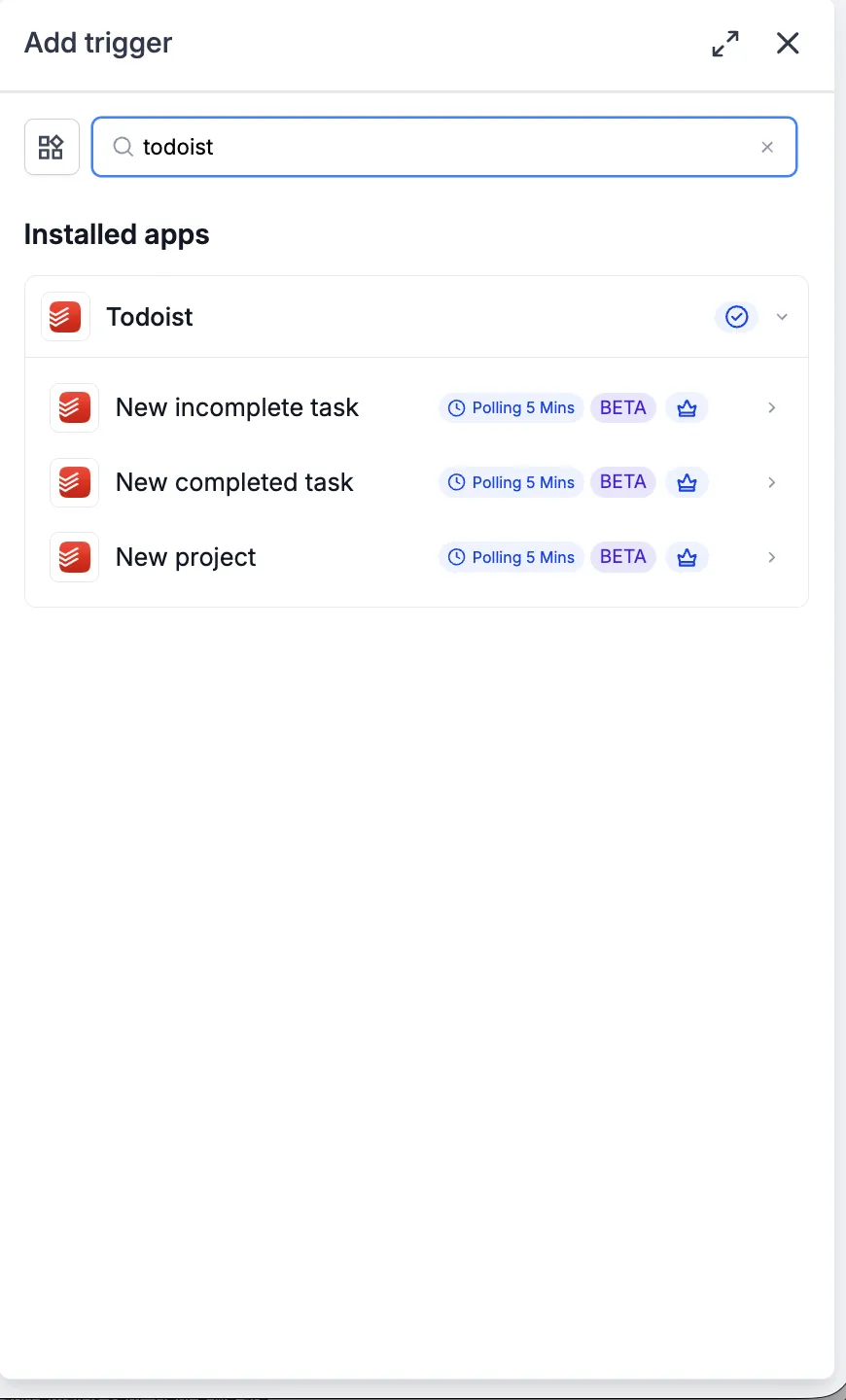
Three Todoist triggers are available:
- New incomplete task
- New completed task
- New project
Each trigger polls every 5 minutes.
Todoist actions
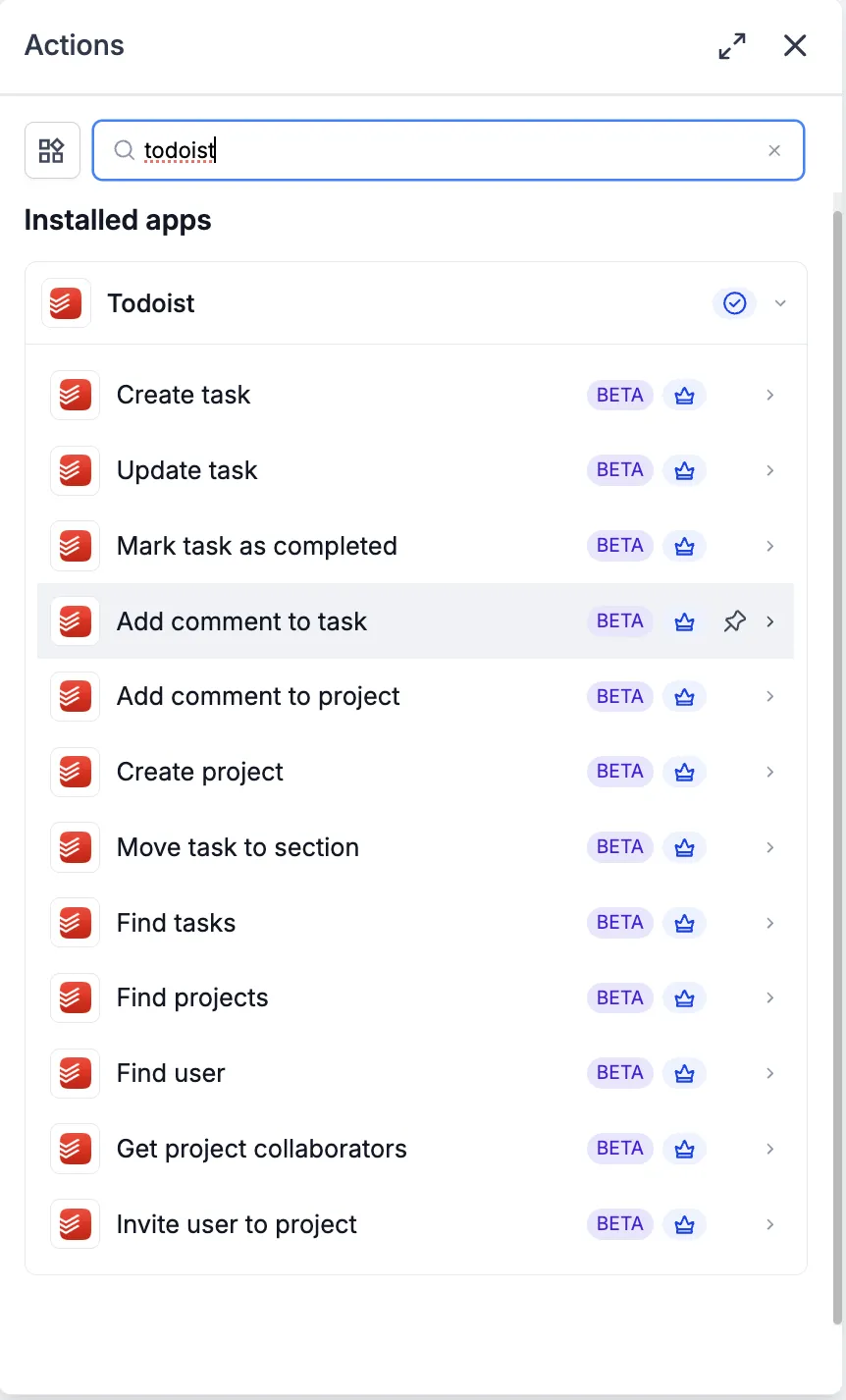
Twelve Todoist actions are available across task, project, comment, discovery, and collaborator workflows. These include creating, updating, and completing tasks, adding task or project comments, creating projects, moving sections, finding tasks or projects, finding a user, getting collaborators, and inviting a user.
These triggers and actions are premium workflow components. Premium action credits apply at the standard automation rate. Todoist plan usage, including projects, tasks, collaborators, and integrations, is billed by Todoist directly on your Todoist account.
Connect Todoist
Before a Todoist trigger or action can run, connect the integration through OAuth.
Recommended setup path:
- Open Automation > Workflows and choose or create a workflow.
- Add a Todoist trigger or action from the Apps tab.
- Select the Todoist trigger or action you want to use.
- Click Connect your account.
- Approve the requested scopes on Todoist’s OAuth authorization screen.
- Return to the Workflow Builder and confirm the panel shows Connected.
You can also connect Todoist from Settings > Integrations by locating Todoist and completing the OAuth flow.
Example trigger: new incomplete task
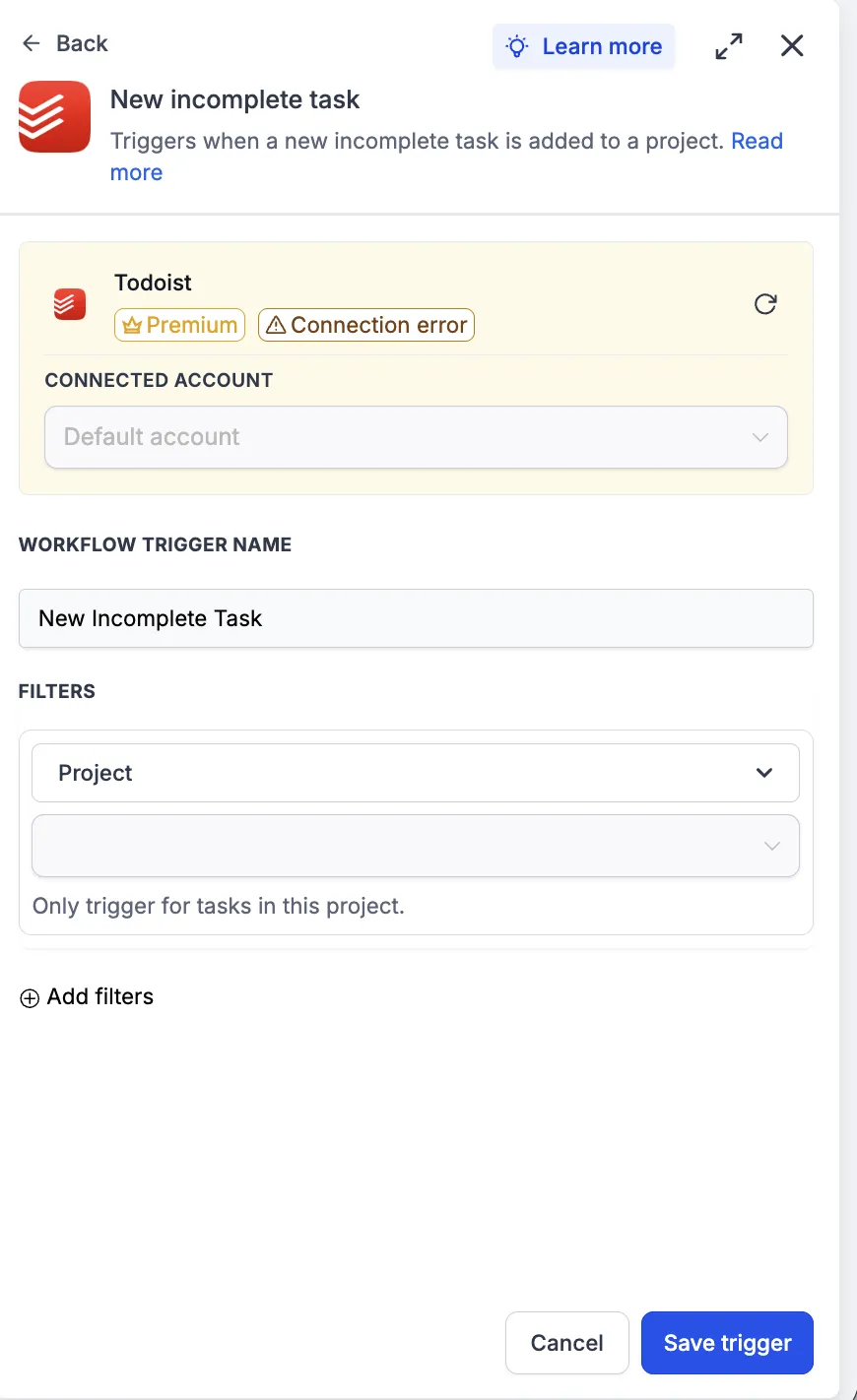
Use the New incomplete task trigger when a workflow should run after a task is created in Todoist.
To configure it:
- Open a workflow and click Add trigger.
- Go to the Apps tab and search for Todoist.
- Select New incomplete task.
- Choose the connected Todoist account to watch.
- Add a workflow trigger name, such as New Support Task.
- Optionally filter by project, label, priority, or due date range.
- Click Find new records to test.
- Select the returned record as the mapping reference, then save the trigger.
If no records appear during testing, create a matching Todoist task and wait one polling cycle, then fetch records again.
Example action: create task
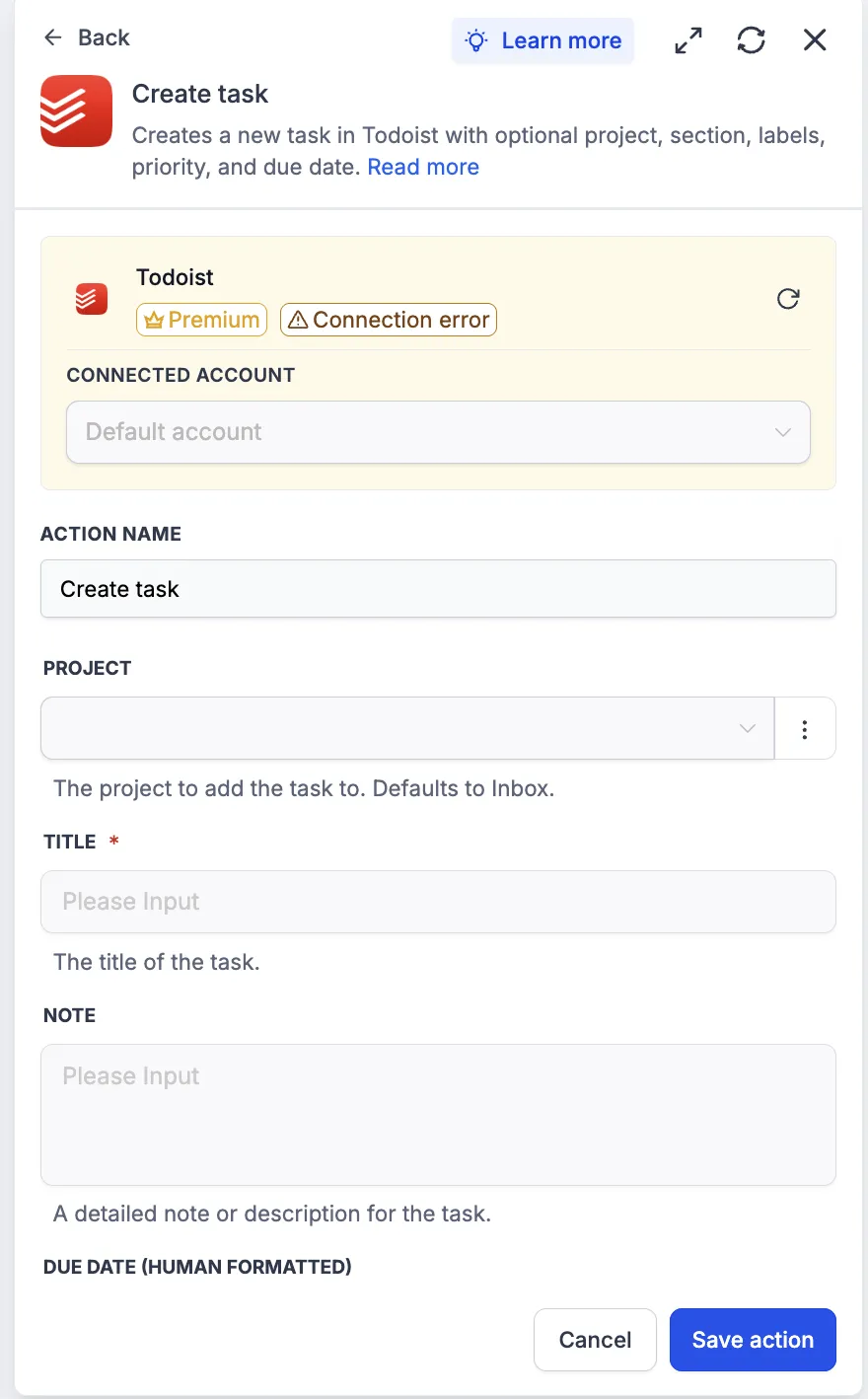
Use the Create task action when a workflow event should create a Todoist task.
To configure it:
- Add a new workflow step.
- Open the Apps tab and select Todoist.
- Choose Create task.
- Select the connected Todoist account.
- Add an action name, such as Create Task from Form Submission.
- Choose a project, or leave it blank to use the Todoist Inbox.
- Add the required task title.
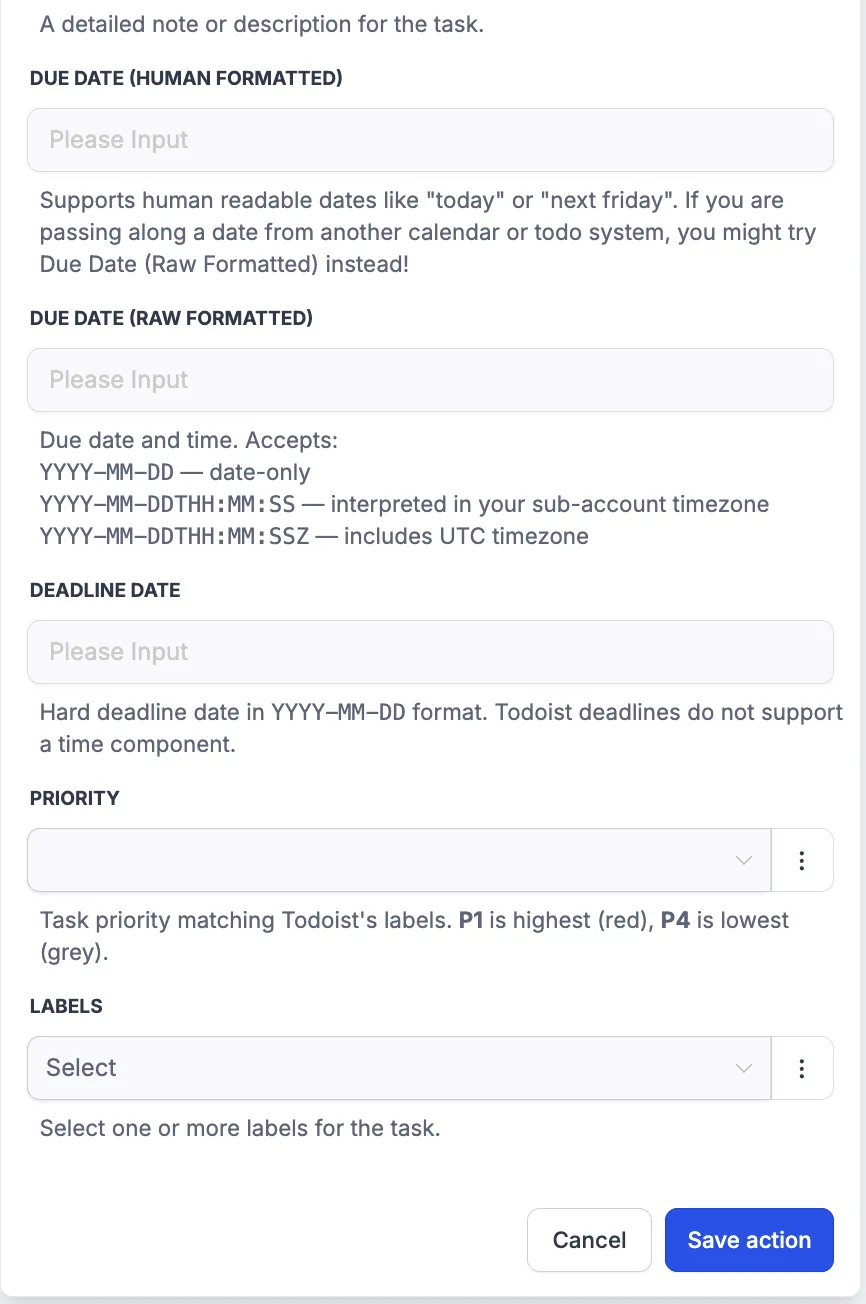
- Optionally add a note, due date, deadline, priority, labels, or other supported task details.
- Click Test action before saving.
Testing this action creates a real task in the connected Todoist account, so use a clearly marked test title if you are testing in a production project.
Ways to use the integration
Common workflow patterns include:
- Creating a Todoist task from a form submission, routed to the right project with labels and priority.
- Reacting when a Todoist task is completed, then updating a contact, sending a notification, or advancing a stage.
- Creating team follow-up tasks with due dates, labels, and comments after operational events.
In Case You Missed It
For another workflow automation update, see User Replied Workflow Trigger.
Release Images
Need Help Applying This Update?
Want help turning this update into a working part of your CRM, marketing, or automation setup?
Get Started or schedule a demo and we’ll help you map the right next step.