Buffer Time Now Appears in Day and Week Calendars
You can now visually show pre-buffer and post-buffer time directly in Day and Week calendar views. Buffer periods appear as informational blocks, making it easier to understand appointment spacing without changing how appointments are booked.
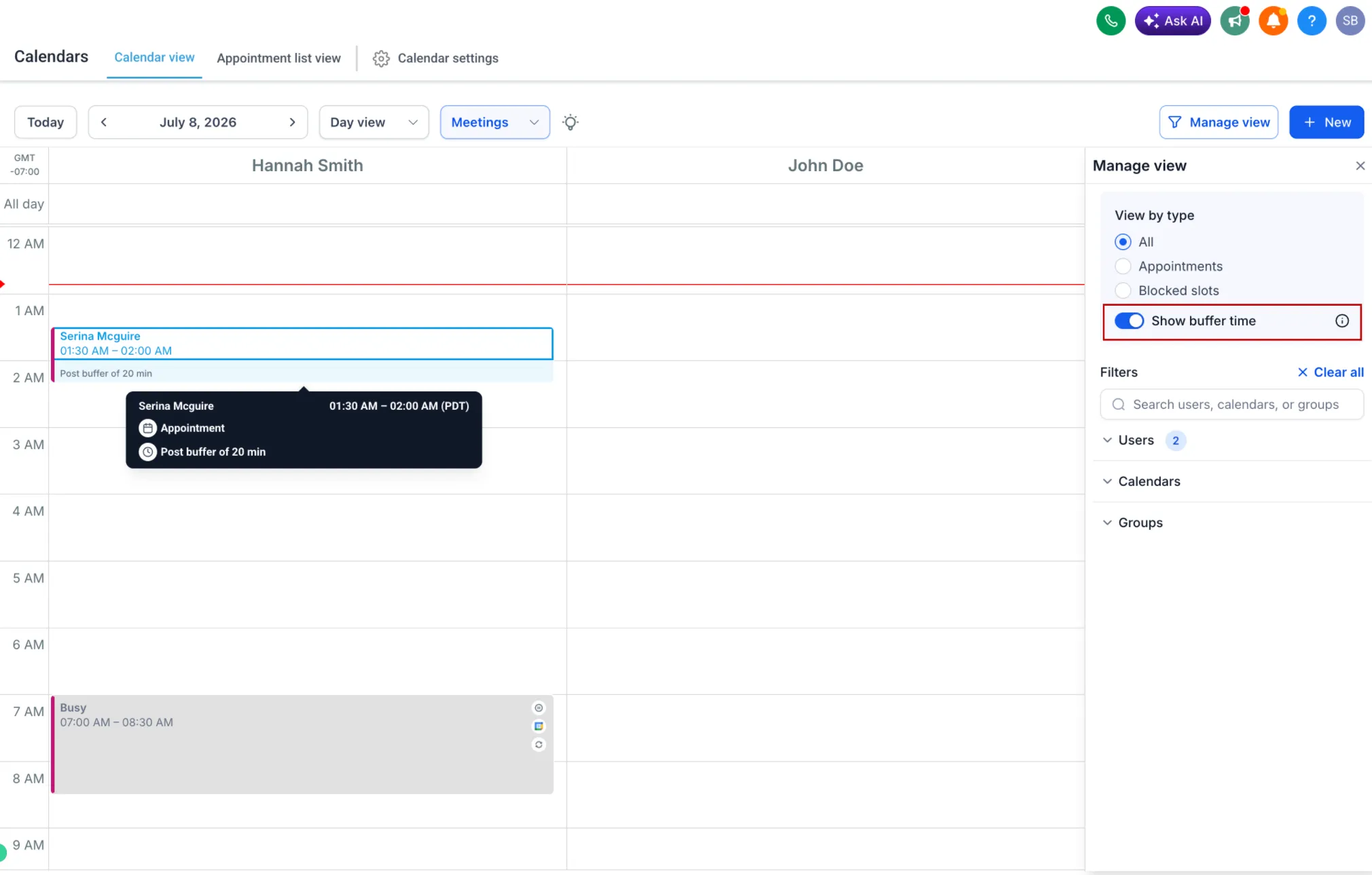
What changed
Previously, buffer times were applied behind the scenes but were not visible on the calendar. This made it harder to distinguish between actual appointments and the transition time around them.
Now, pre-buffer and post-buffer times can be displayed in Day and Week views. These buffer blocks are visually distinct from appointments, so schedules are easier to interpret at a glance.
Buffer visibility works across supported calendar filters, including:
- Staff or user
- Service or calendar
- Category or group
How to use it
- Go to Calendars.
- Switch to the Day or Week view.
- Turn on the Show buffer time toggle.
- Review the highlighted buffer periods before and after appointments.
Why it matters
Visible buffer time helps teams better understand spacing between appointments, identify transition periods, and plan the day more effectively while keeping existing scheduling flexibility.
Need Help Applying This Update?
Want help turning this update into a working part of your CRM, marketing, or automation setup?
Get Started or schedule a demo and we’ll help you map the right next step.