Add Attachments to Invoices and Estimates in the SMBcrm Mobile App
You can now attach supporting files to invoices and estimates from the SMBcrm Mobile app. This helps you add context, include documentation, and send more complete payment requests while working in Payments & Commerce.
What changed
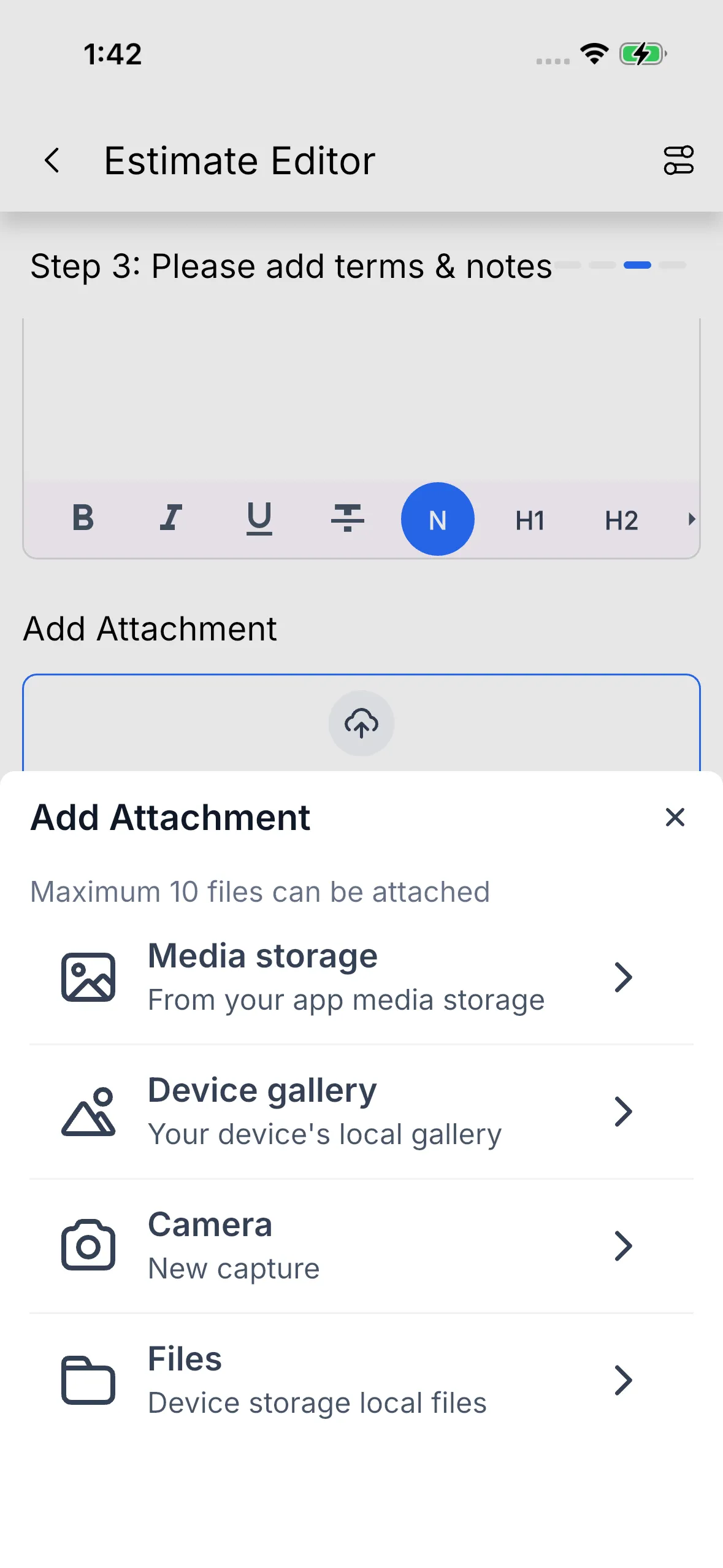
You can add attachments while creating or editing invoices and estimates on mobile.
Supported file sources include:
- Media Storage
- Camera
- Gallery
- Local device files
Supported file types include:
- PNG
- CSV
How to add attachments
- Open the Invoices or Estimates section in the SMBcrm Mobile app.
- Create a new invoice or estimate.
- Scroll to the Attachments section.
- Tap Add Attachment.
- Choose a file source:
- Media Storage
- Camera
- Gallery
- Files
- Select or capture your file.
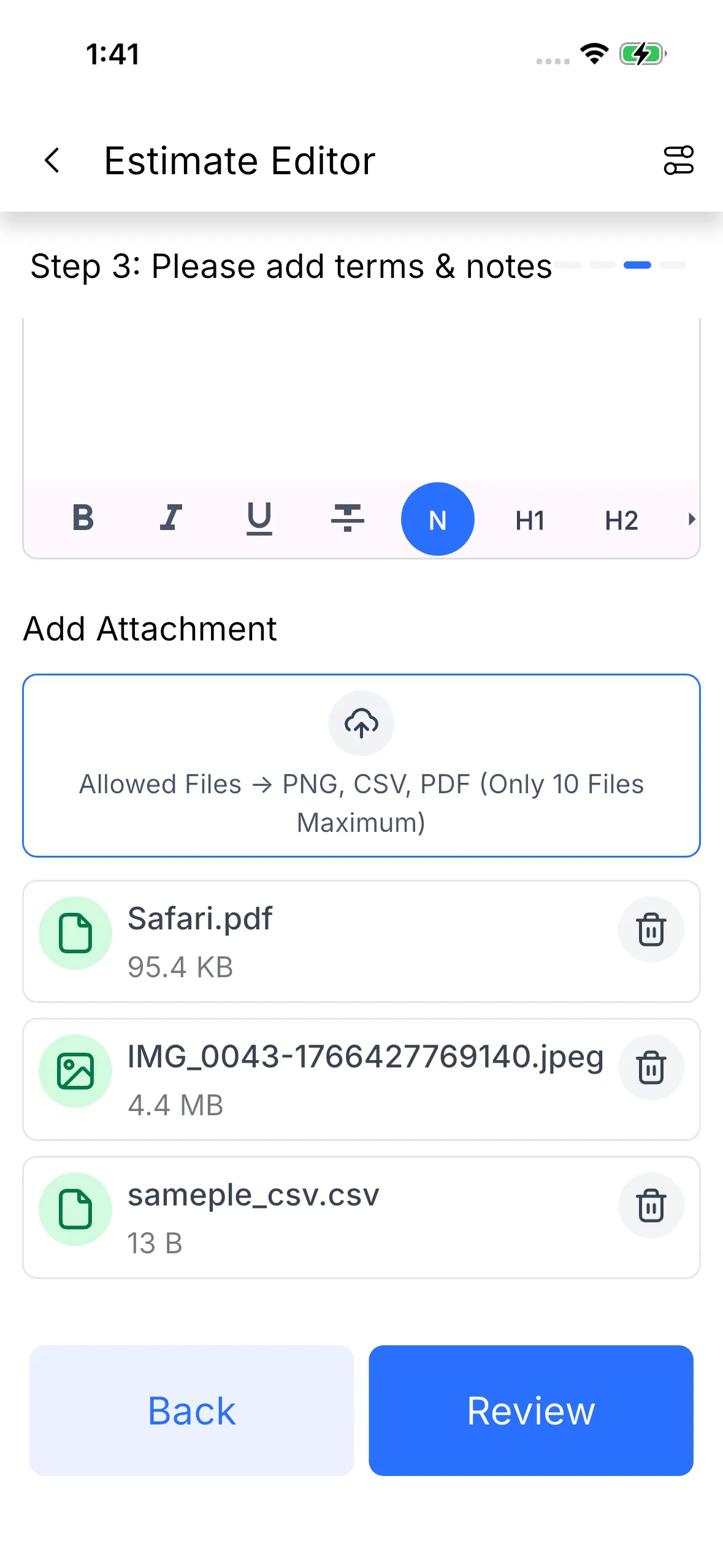
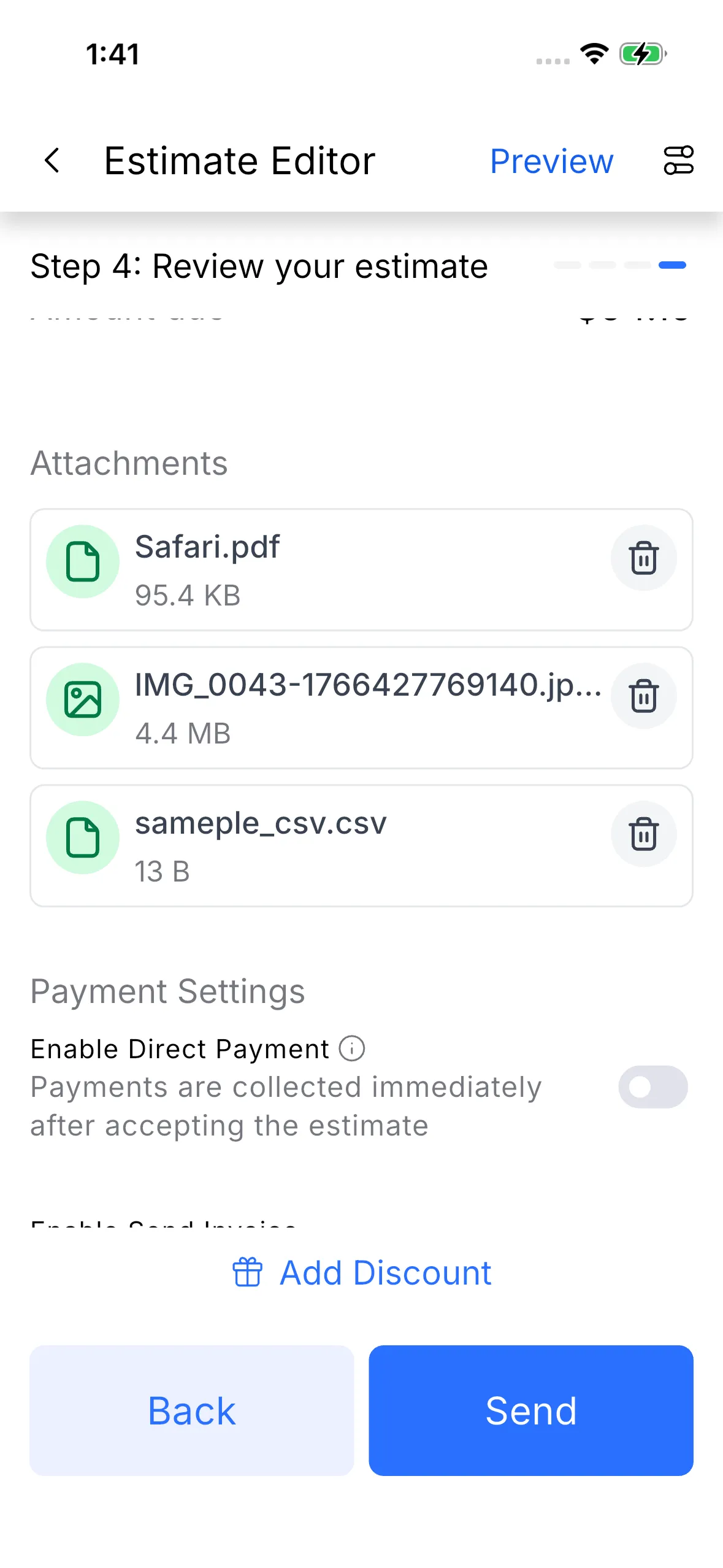
- The attachment will appear in the draft with its file name and type.
Manage attachments before sending
Before sending, you can review attachments in the draft and remove any file you do not want to include.
- Tap an attachment to open the options.
- Select Delete to remove it.
- Review the remaining files before sending the invoice or estimate.
Attachment limits
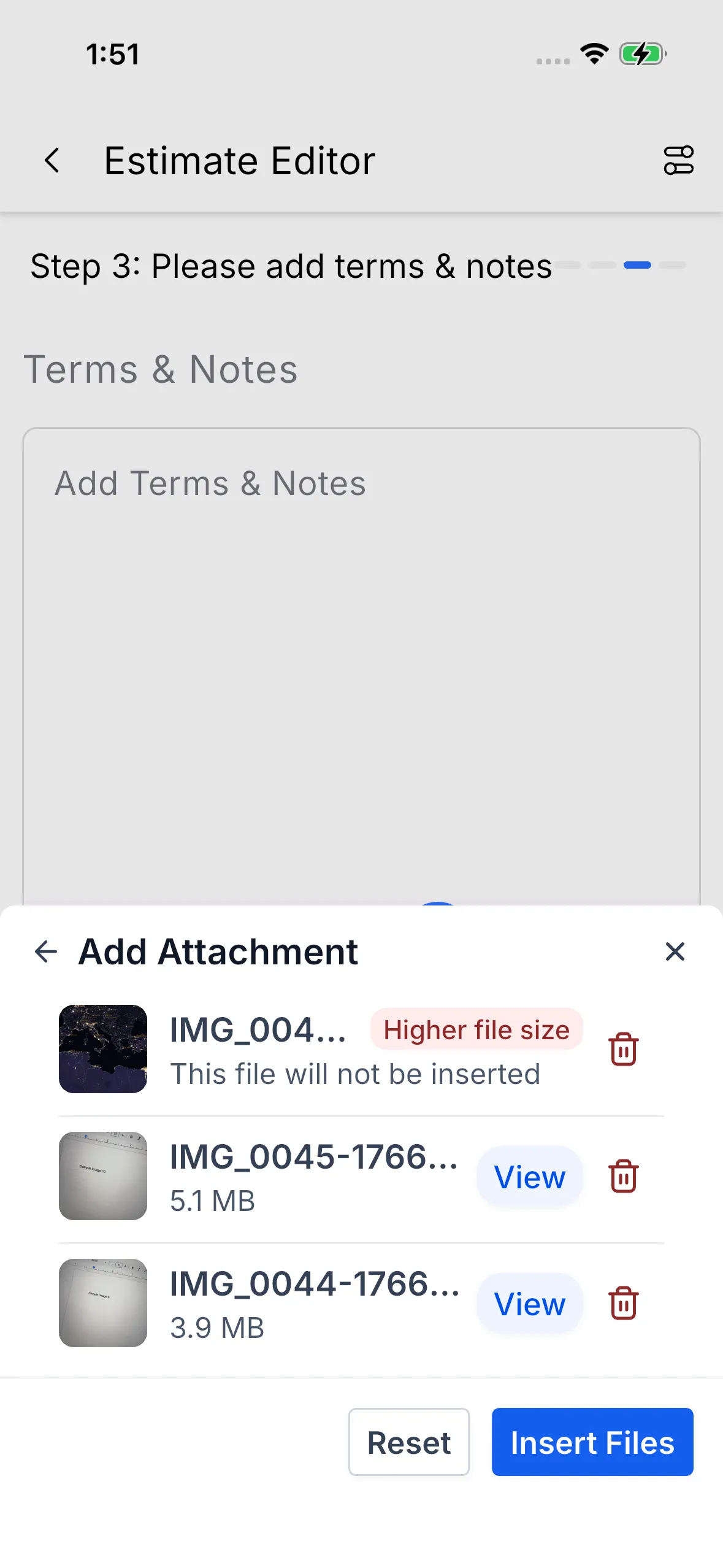
Keep these limits in mind:
- Up to 10 files per invoice or estimate
- Total attachment size limit of 20 MB per document
In Case You Missed It
You can also read Set a Default Path for Workflow Branches.
Release Images
Need Help Applying This Update?
If you’d like help rolling this out in SMBcrm, visit Support or request a demo.