What’s New: Dynamically Assign Fillable Fields in Documents & Contracts from Workflows
You can now assign certain fillable fields in your Documents & Contracts templates dynamically, based on the workflow’s From user setting. This helps ensure the right person is assigned to sign (or complete) sender-based fields automatically when a workflow sends a document.
This is especially helpful for teams where multiple reps use the same contract template and need signing fields to match whoever is sending the document at that moment.
Why This Matters
When the same contract template is used across different reps, a common issue is that the “sender” signer field doesn’t update reliably and the document goes out with the wrong signer assigned.
With this update, you can:
- Keep one standard template while still assigning signer fields correctly per workflow sender
- Reduce manual edits and re-sends
- Support smoother sales, onboarding, and handoff workflows in shared pipelines
How to Set It Up
Step 1: Create a Template with a Sender Field
- Go to Payments → Documents & Contracts → Templates
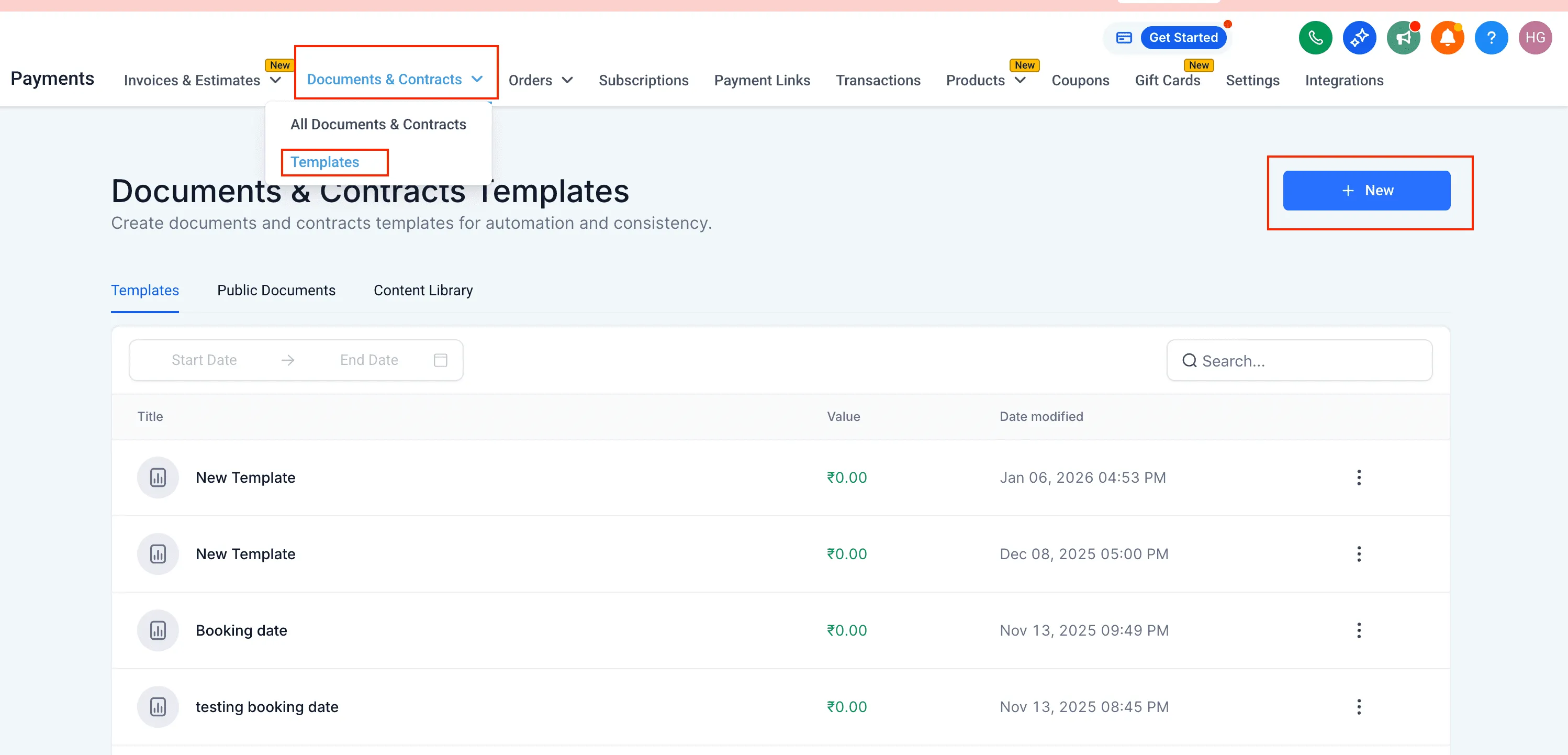
- Click New and open the template editor
- Add a Signature (or another fillable field)
- Set To be signed by → Sender
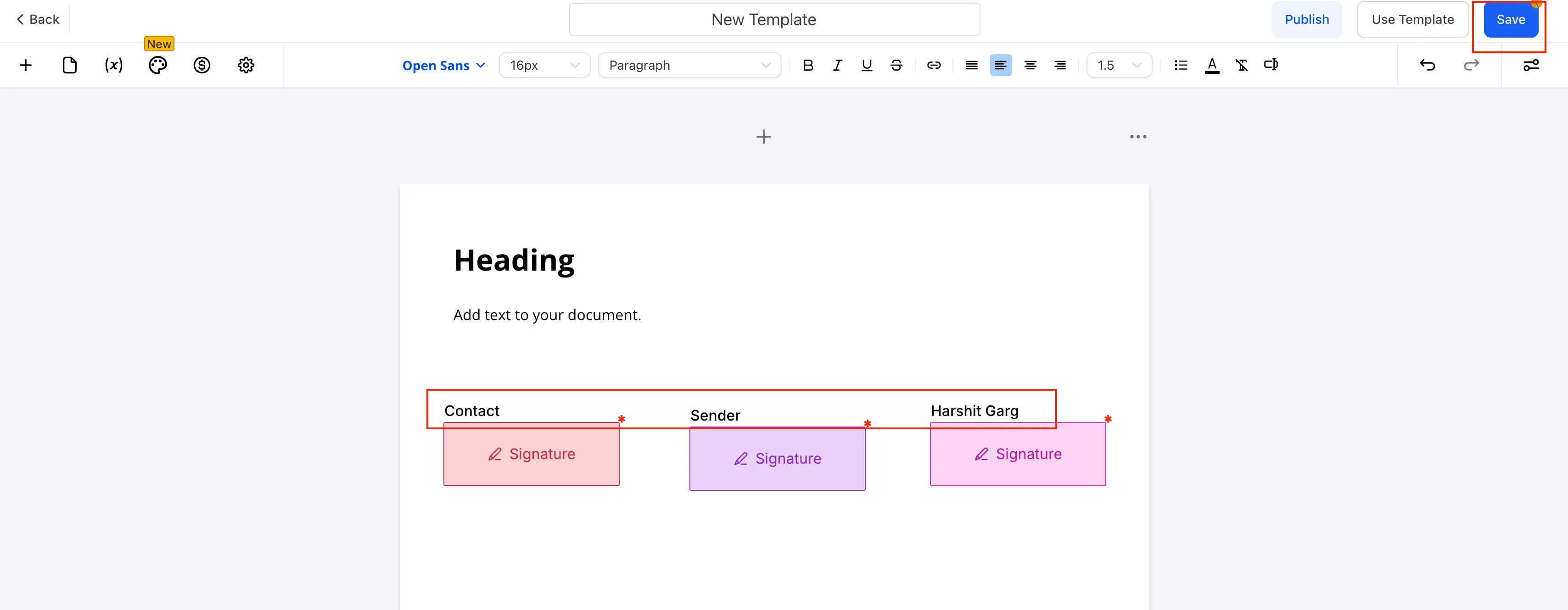
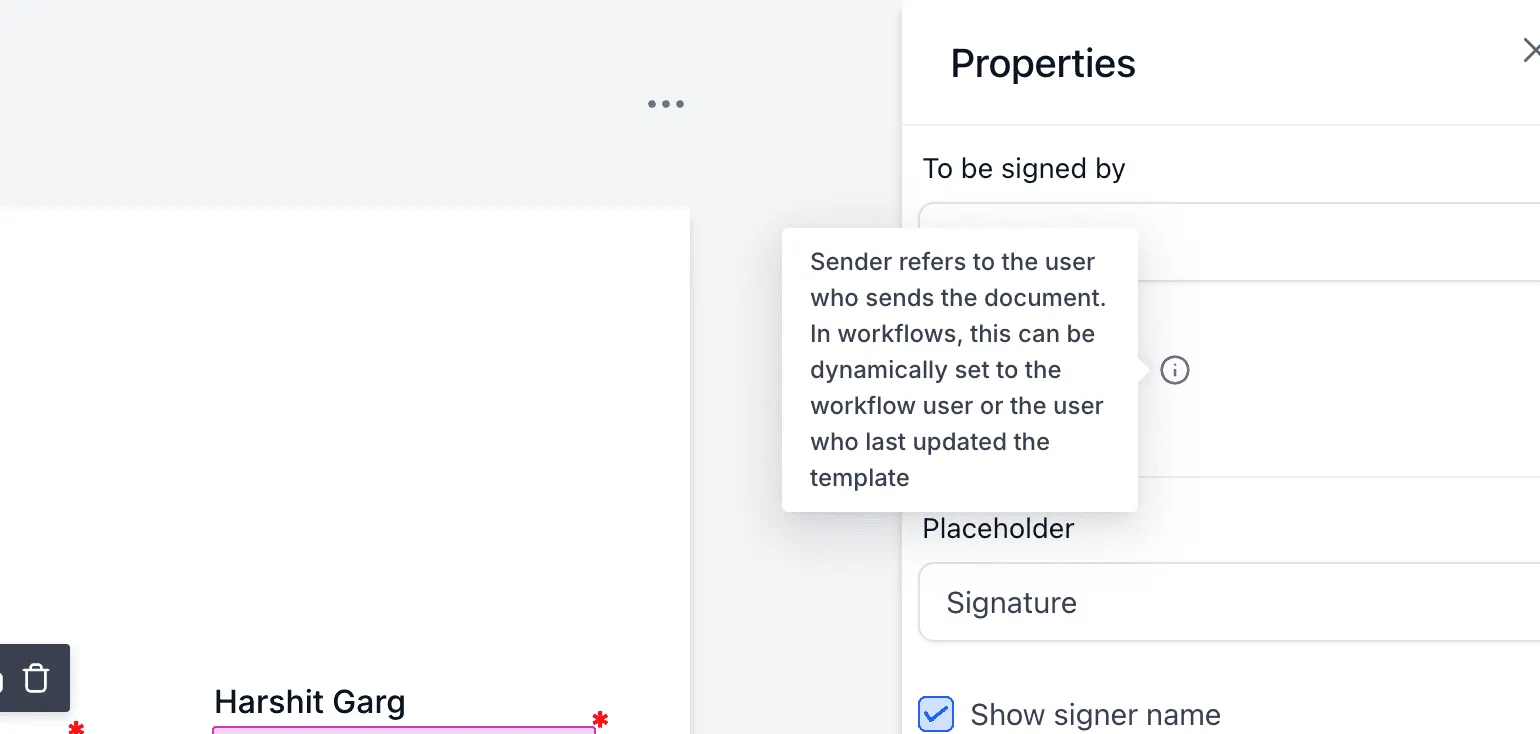
- Save the template
Step 2: Use the Template in a Workflow
- Open Workflows and add the action Send Documents & Contracts
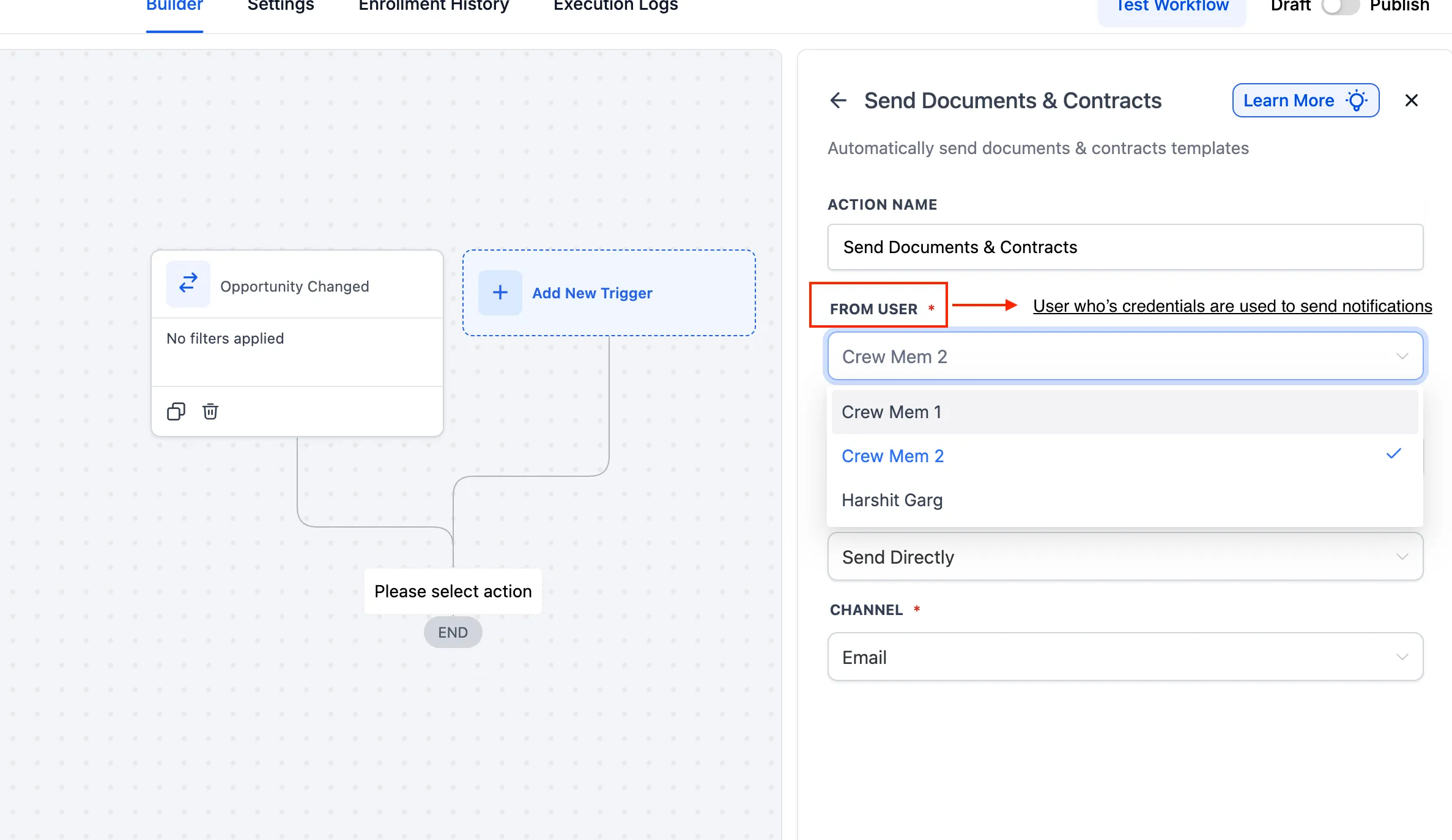
- Select the From User (this controls the sending credentials)
- Choose your template that includes Sender fields (the system will detect these fields)
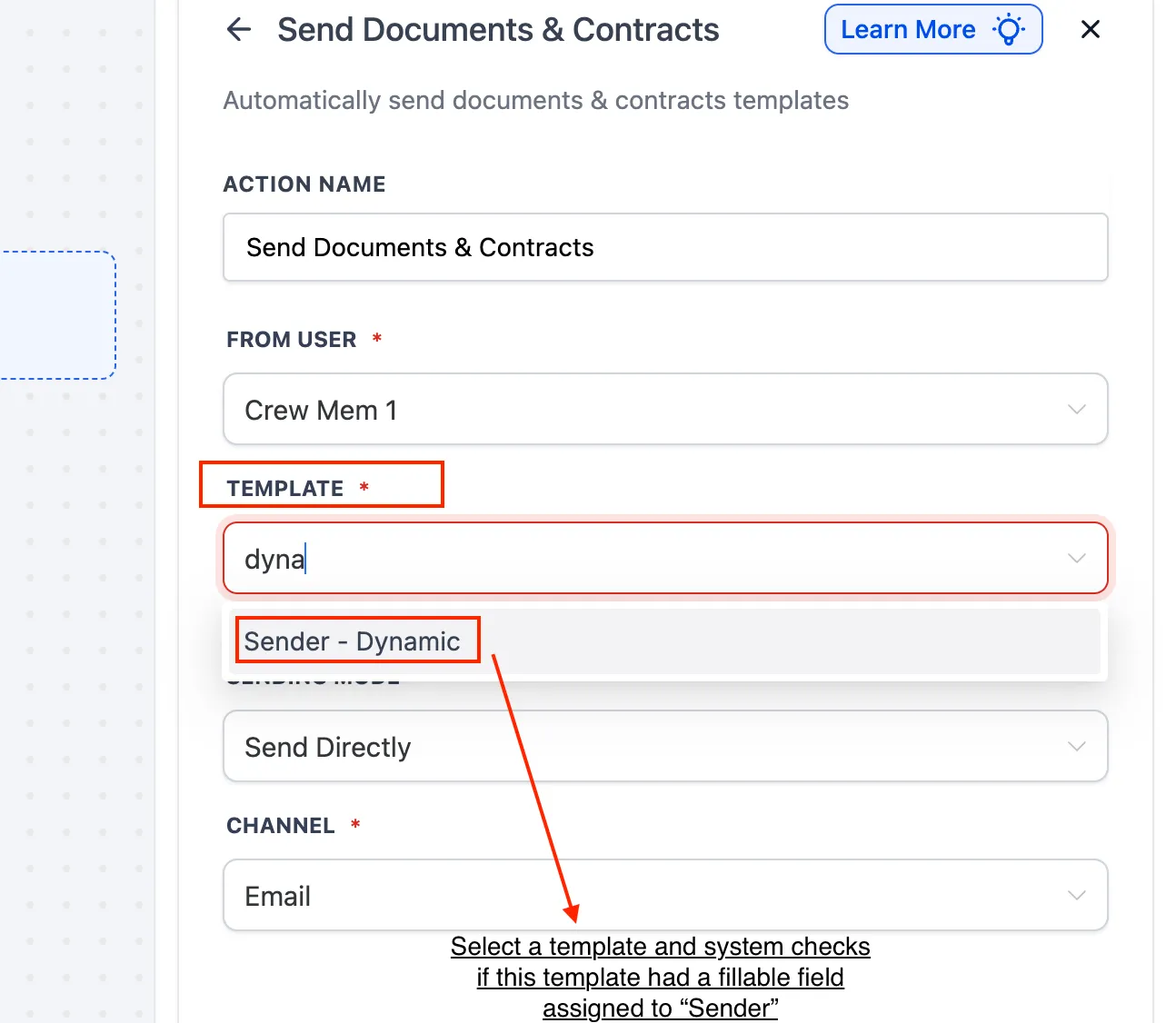
- Under Assign Sender Fields To, select one of the following: From User: if the signer should be the workflow sender
- Template Owner: if the signer should be the user who last updated the template
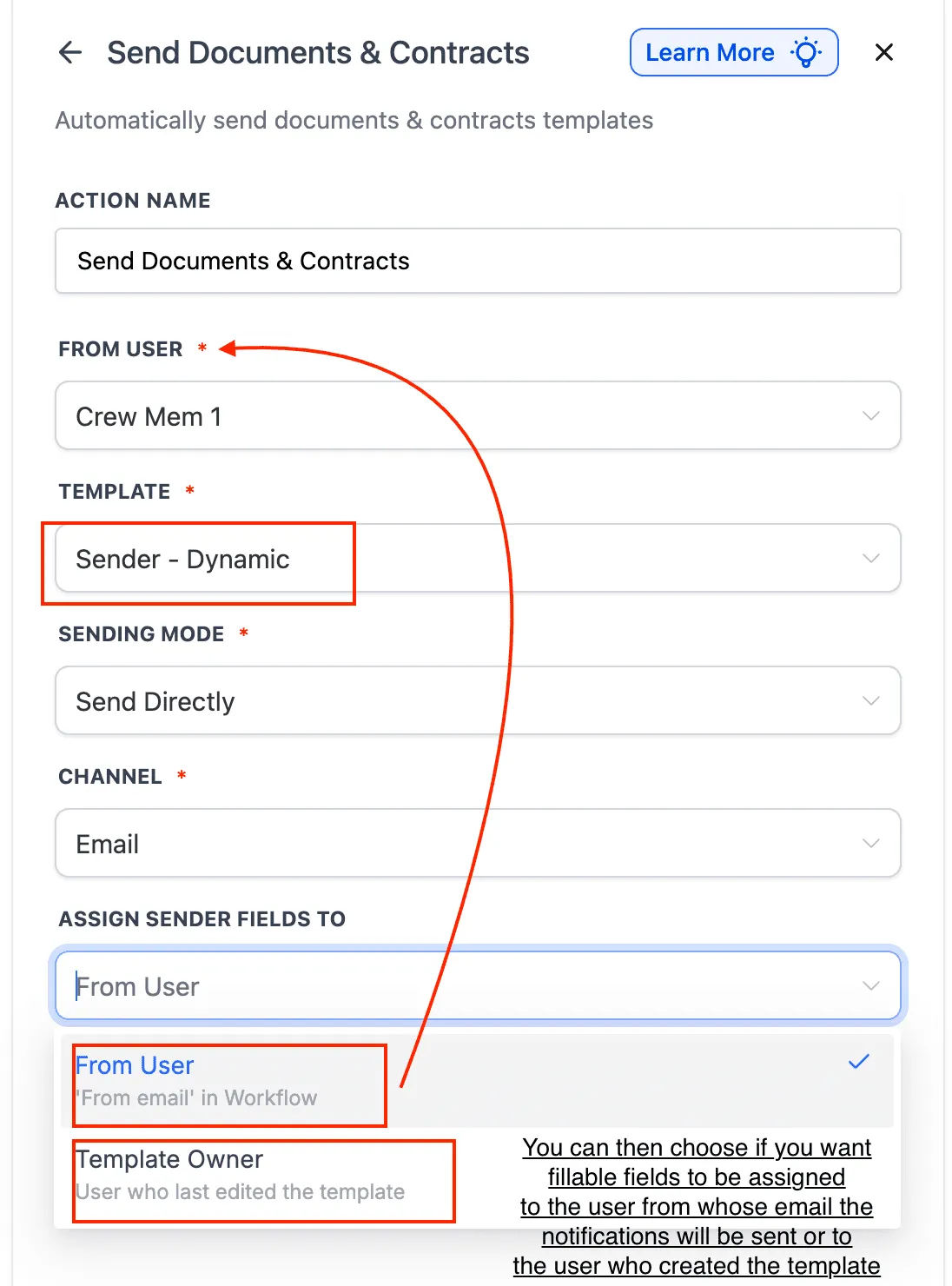
- Choose your sending mode and channel (Email or Direct)
- Save and publish the workflow
The system will automatically check and assign the Sender field correctly before sending.
Best Fit Use Cases
Sales teams with multiple reps
Route contracts from different pipeline owners while keeping one standardized template.
Onboarding handoffs
If account ownership changes mid-process, documents can still reflect the right sender automatically.
Multi-user teams and agencies
Reduce template duplication and keep document management cleaner across accounts.
Need Help Setting This Up?
If you’d like help configuring your workflows or document templates, visit our support resources or reach out directly:
- Support: https://smbcrm.com/support/
- Contact: https://smbcrm.com/contact/
- Request a demo: https://smbcrm.com/demo/