SMBcrm Mobile App: Manage Cards on File for Contacts
You can now save, use, and remove cards on file for a contact in the SMBcrm Mobile app. This helps speed up repeat payments and keeps payment methods organized inside the contact record.
What Changed
From a contact’s payment area in the mobile app, you can now:
- Save a customer’s card for future use
- Remove a saved card when it is no longer needed
- Use saved cards when creating a transaction, invoice, estimate, or in-person charge tied to that contact
This update supports faster payment collection in both your CRM workflow and payments workflow.
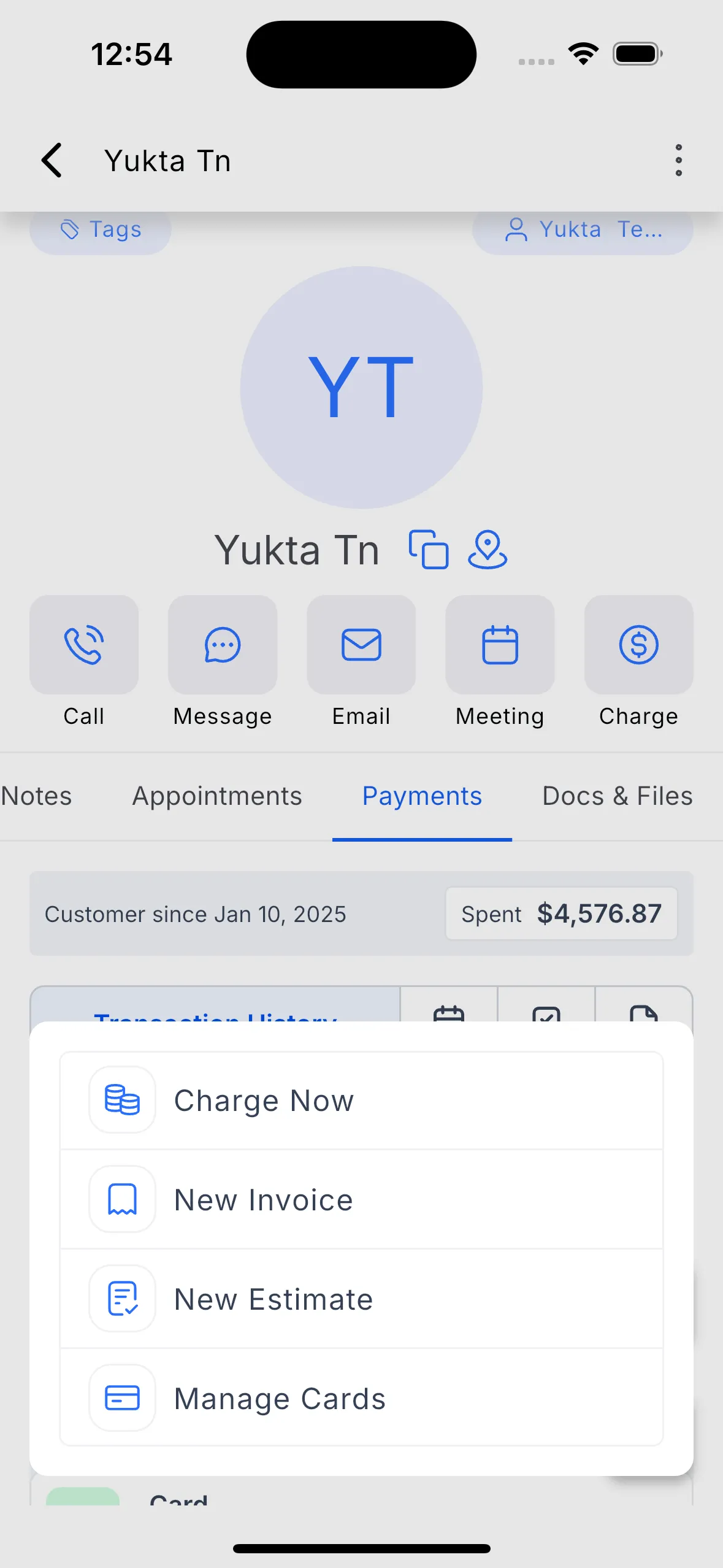
How to Add a Card on File
- Open the SMBcrm Mobile app.
- Go to Contacts.
- Select a contact.
- Open the Transactions tab.
- Tap the + button.
- Select Manage Cards on File.
- Enter the card details and save the card.
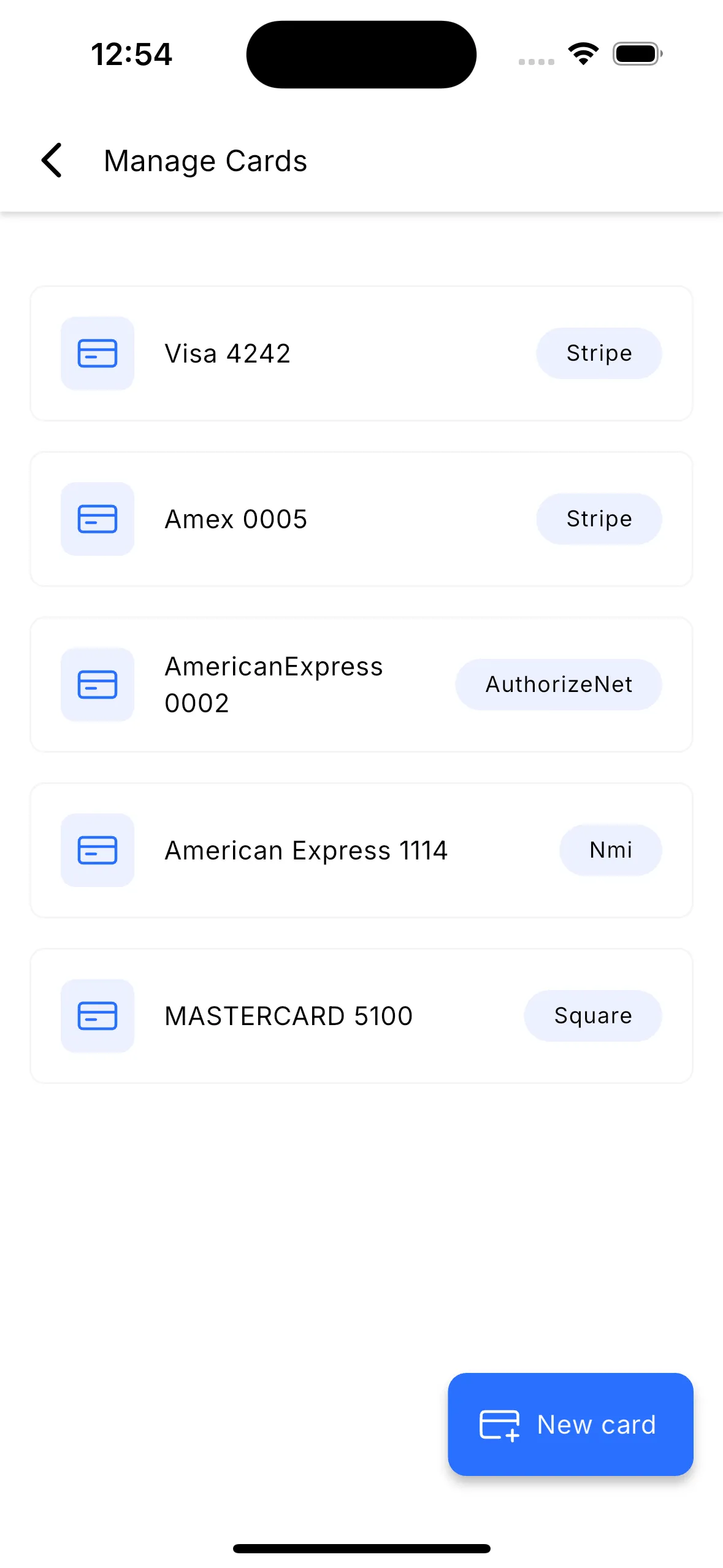
How Saved Cards Can Be Used
When you create a transaction, invoice, estimate, or in-person charge linked to the contact, any saved cards will appear as available payment methods.
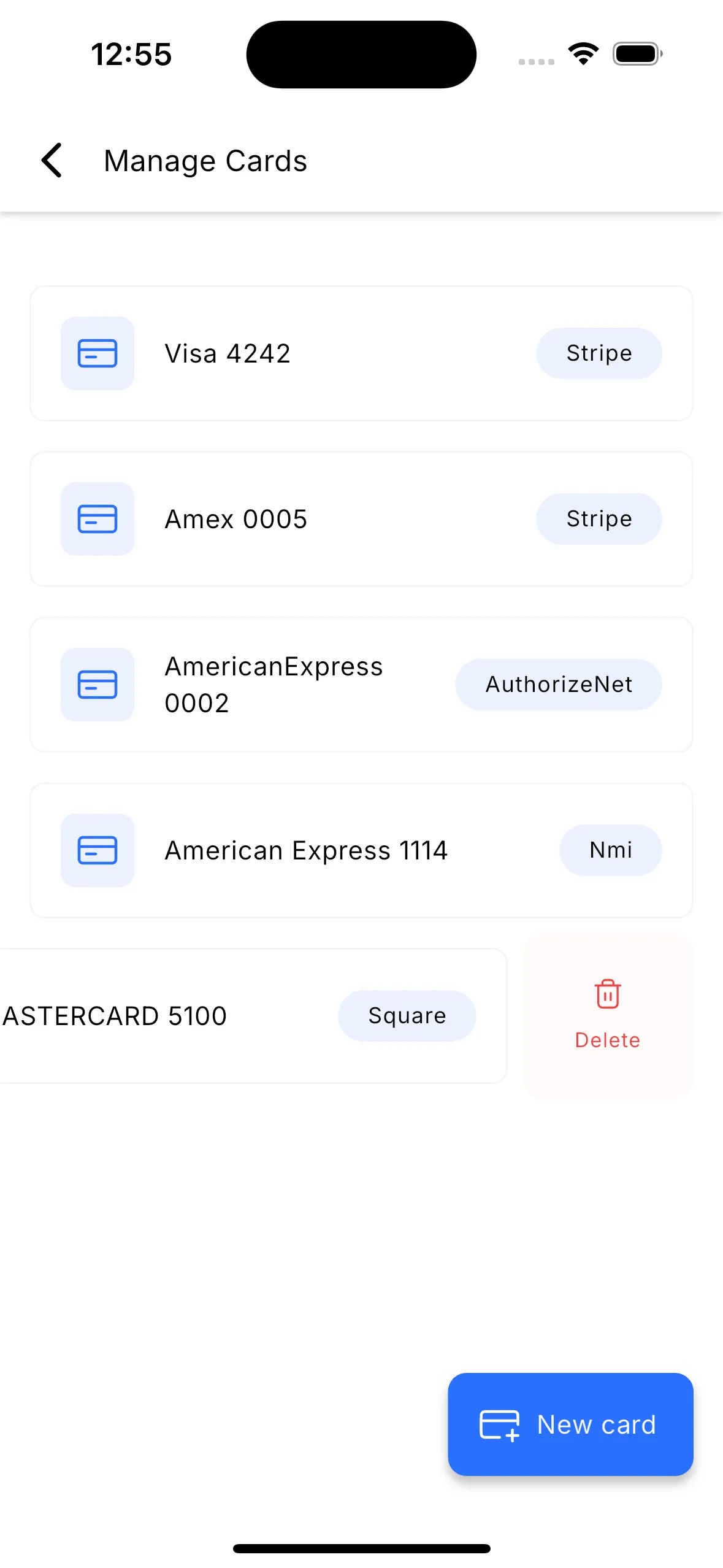
How to Remove a Saved Card
- Open Manage Cards on File for the contact.
- Swipe left on the card you want to remove.
- Tap Remove.
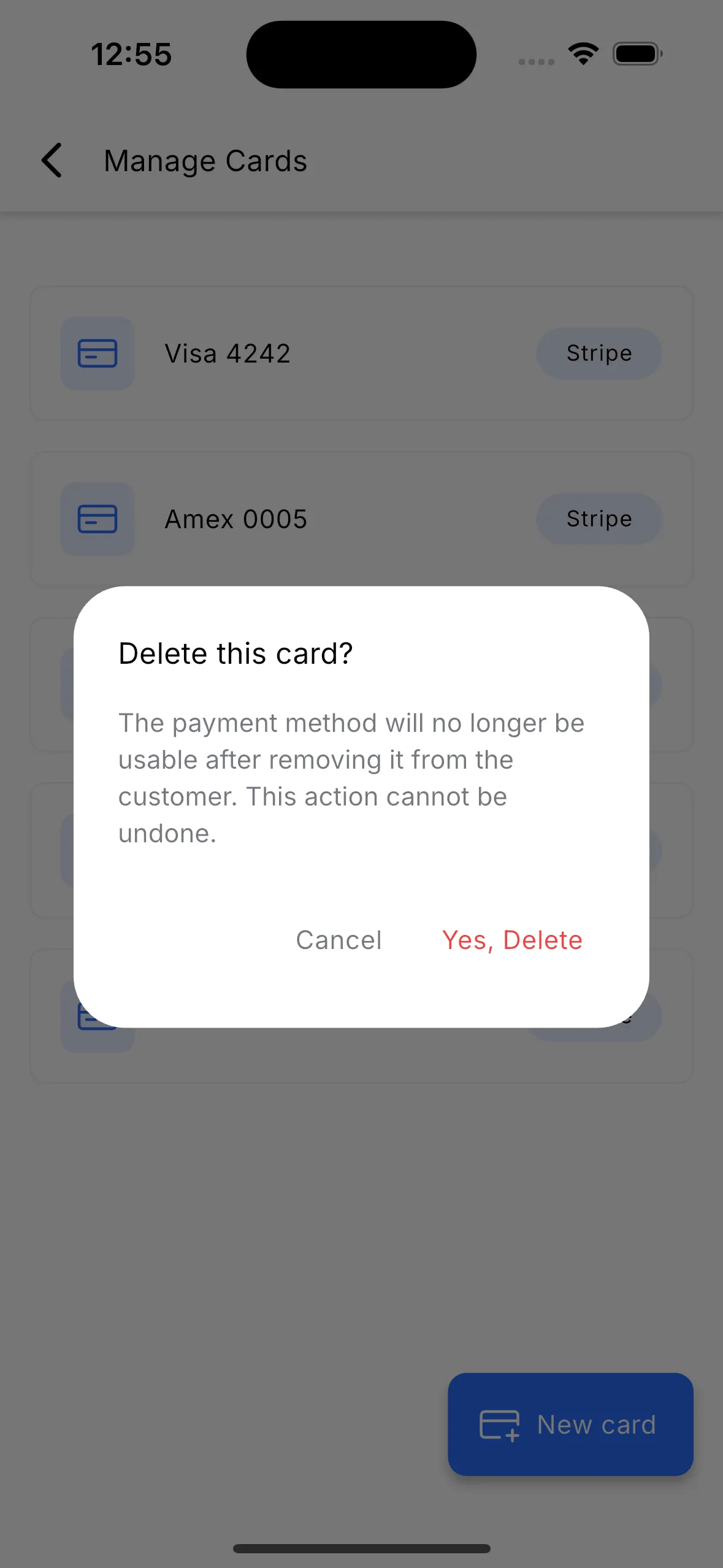
- Confirm the action.
Why It Matters
- Faster checkout for returning customers
- Better organization of payment methods within the contact record
- A smoother experience for repeat payments
In Case You Missed It
You can also read about setting a default path for workflow branches.
Need Help Applying This Update?
If you’d like help rolling this out in SMBcrm, visit Support or request a demo.