Workflow AI Builder Enabled by Default
Workflow AI Builder is now enabled by default. This update improves speed, accuracy, and reliability, while adding several capabilities that make it easier to build and refine automations with AI features and automation tools.
What Changed
Faster workflow generation
- Average workflow creation time has dropped from about 50 to 60 seconds to under 30 seconds.
- Simpler prompts can finish in as little as 15 seconds.
- Template-style generation that previously took up to 90 seconds can now complete in about 6 to 7 seconds.
- Generation errors have been reduced, including fixes for condition generation and node generation failures.
- Action and trigger selection is more accurate based on the prompt and use case.
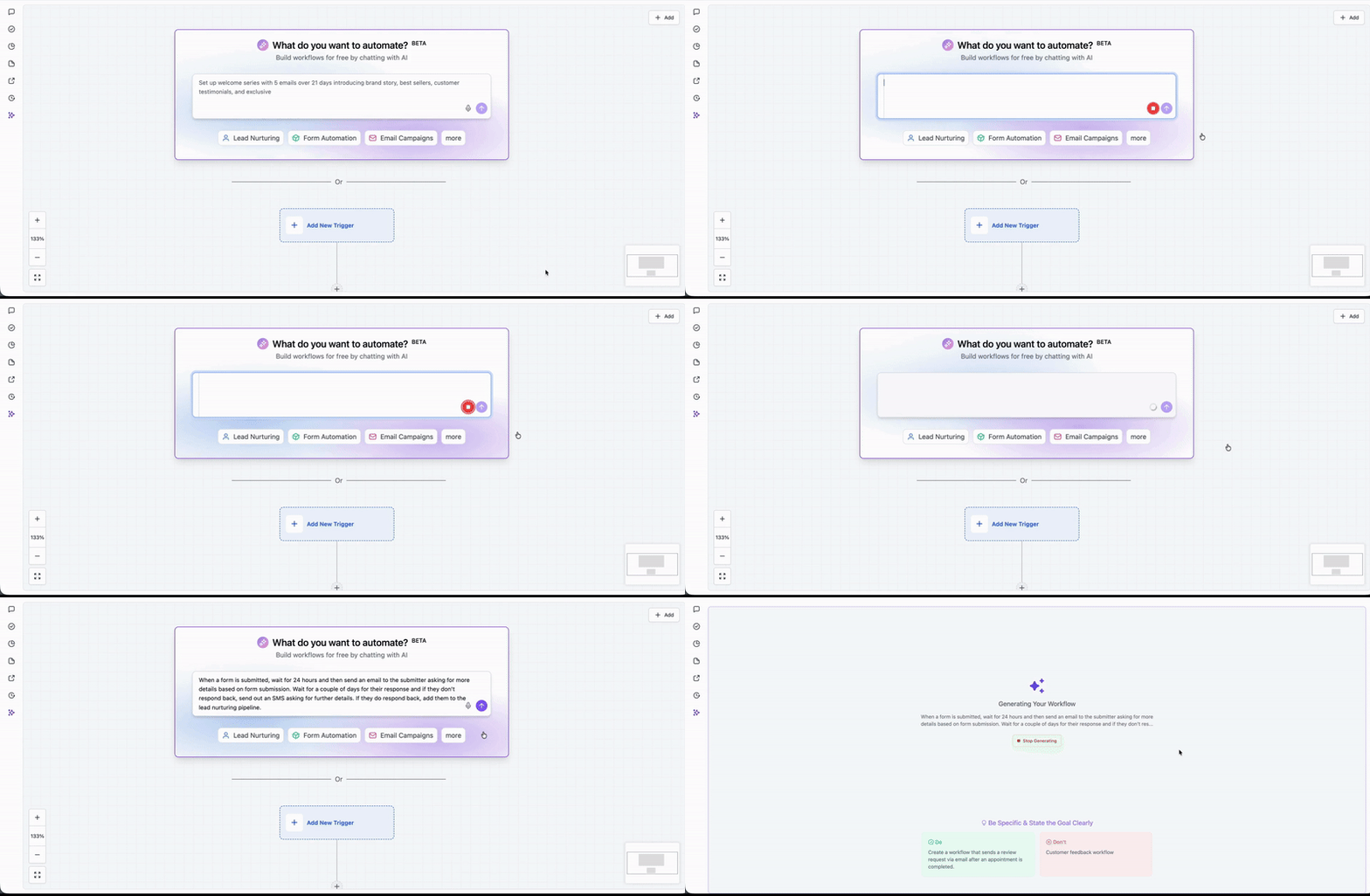
New workflow-building capabilities
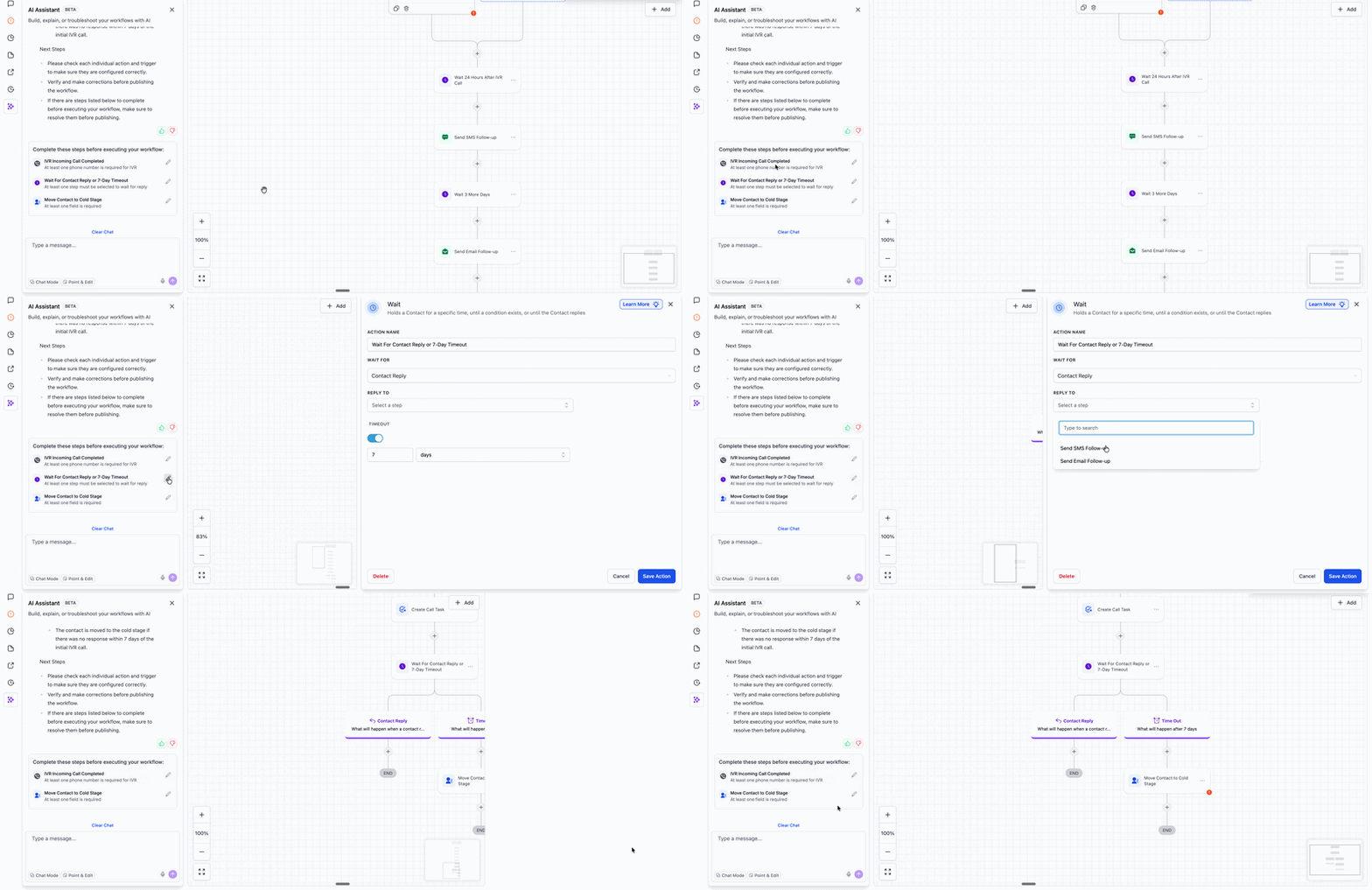
- Post-generation to do list: After a workflow is created, AI Builder now shows a list of items that still need user input, such as credentials or custom values. Selecting an item takes you to the relevant action.
- Workflow settings and naming from prompts: AI Builder can now configure workflow settings and rename the workflow based on the prompt.
- Conversational editing for If/Else and Wait actions: Instead of making these edits manually after generation, users can now refine them through a multi-turn AI conversation.
- Voice dictation: Users can describe a workflow with voice input to speed up creation and improve accessibility.
- Smarter Wait step generation: Wait steps now include more guardrails and support for specific dates, branching logic, and advanced time window configuration from a single prompt.
- Autosave support: If autosave is enabled, AI-generated workflows are saved automatically after generation or editing.
- Integration app support: AI Builder now supports integration apps such as Asana and ClickUp and can select the appropriate action from a prompt.
- Data linking across actions: Outputs from one action can now be referenced in another action built through AI, including examples like using a GPT output inside an email body.
Opt-Out Options
If you do not want AI Builder enabled by default:
- Go to Automations > Global Workflow Settings and turn off AI Builder for that account.
In Case You Missed It
You can also read about Set a Default Path for Workflow Branches.
Need Help Applying This Update?
If you’d like help rolling this out in SMBcrm, visit Support or request a demo.